Tips and Troubleshooting
Note
If you are having any issues do not hesitate to Contact Us
The modifier does not appear to work or crashes Blender when I try to use it
This is likely due to the fact that the modifier is compatible with Blender 4.3.0 and above. Make sure you are using the correct version of Blender and Contact Us if you are still having issues.
The modifier appears in the Unassigned category instead of Deform

By default, Blender does not categorize custom modifier assets automatically. If Fit Curve appears in the Unassigned category instead of Deform, follow these steps to manually set the correct category inside Blender.
When I distort an object, it can look distressed or triangulated. Why?
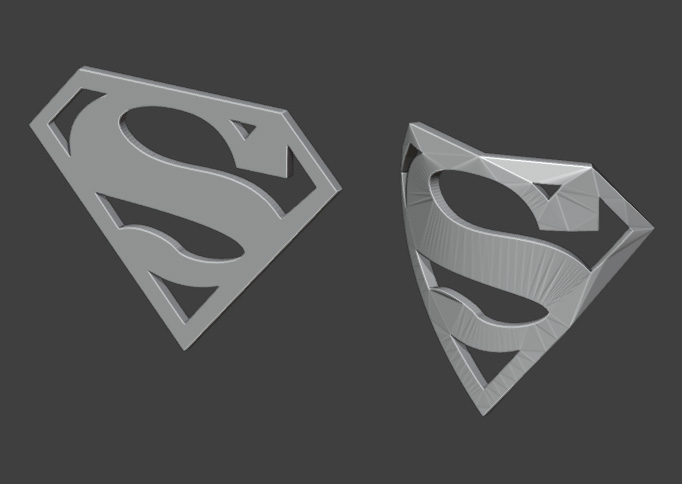
When you bend or stretch an 3D object, as with Fit Curve, the object’s topology (or the edges and faces that make up the mesh) affects how well it deforms.
For best results, your object should have a clean, evenly spaced, quad-based mesh.
If your object is made of triangles or n-gons (faces with more than four sides), it may bend strangely, stretch unevenly, or break apart.
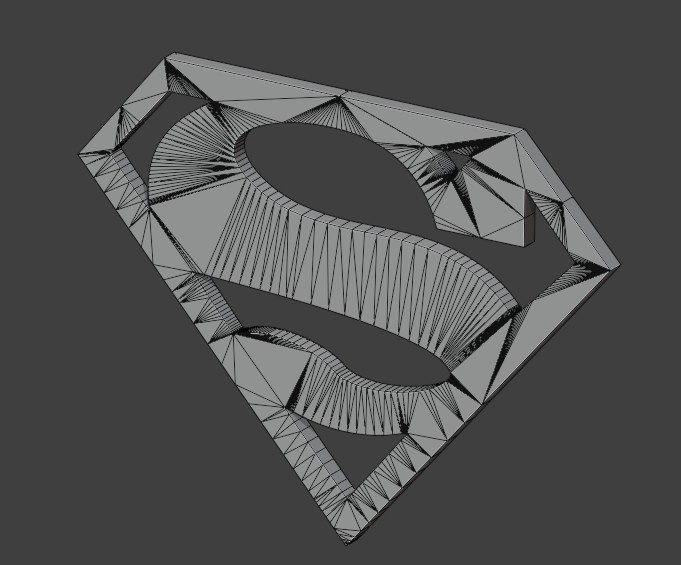
Quick Fix for Text & Logos

If you’re trying to curve text or a logo, a fast way to improve the topology is:
Add a Remesh Modifier to your object.
Set it to Sharp mode.
Untick Remove Disconnected (so letters don’t merge).
Increase Octree Depth to add more detail.
Warning
This method increases geometry, making your file heavier.
Better Long-Term Solutions
For good deformations, consider:
Manual Retopology – Redrawing the mesh with nice, even quads. My other add-on, Quad Maker, may help.
Subdivision Modifier – Adds more geometry for smoother bending.
Remeshing in an External Program – Software like Instant Meshes or RetopoFlow can help.
With a good mesh, Fit Curve will work much better.
I can’t see the curve to edit when the modifier is applied

When you add the Fit Curve modifier, the curve object may disappear from view. This is because the curve is being used as the deforming object and is occluded from view.
With the curve object selected, you can go to the Object properties panel and enable the In Front option under the Viewport Display section:

This will make the curve visible in front of other objects, allowing you to see and edit it more easily.
Using more curves with the Add Curve: Extra Objects Add-on

Blender has a built-in add-on called Add Curve: Extra Objects that provides additional curve types, such as spirals, superellipses, and more.
To enable it:
Go to Edit → Preferences → Add-ons.
Search for Add Curve: Extra Objects.
Enable the add-on by checking the box.
Now, when you press Shift + A → Curve, you’ll see more curve options!
Tip
Make sure ‘3D’ is selected when creating new curve objects.
When selecting a curve, that curve appears solid and does not appear to work.

This may be that the Curve Shape is set to 2D and not 3D, which can be changed by going to the Curve properties tab and selecting 3D instead of 2D in the settings:

When I scale a curve, the result seems stretched. How do I fix this?
When you scale the curve in regular object, it is stretching the curve’s “global” coordinates which will also distort the mesh.

To fix this, you can apply the scale to the curve by selecting it, and under the Object viewport menu select Apply -> Scale:

A question or issue I have is not covered here.
Please do not hesitate to Contact me if you have any questions or issues. I am here to help you get the most out of Fit Curve.